Back to Training Library
CPI • Community Procurement Independent

The Landscaping Company's Journey

From a listing (no fee) to full Premier Verified status — a step-by-step, page-by-page, form-by-form walk-through. Ten stages, every field and action, and one honest rule for all.

Listen along

Prefer to listen? Play the full guide read aloud.

This playbook follows one landscaping company all the way from its first application to full Premier Verified status. You'll see every screen, every field, and exactly who does what — the vendor, CPI's prefill and research, the reviewing admin, and the independent verifier. Throughout, one rule never bends: nobody pays to win.

About the screens. The screenshots in this guide are captured on the real platform using a demonstration company, TrueGreen Grounds Management LLC — illustrative data, not a real member. Prices shown reflect current published rates.

1

Create your application (no fee)

Seat: the Vendor • Cost: $0 • Where: the “Join as a Vendor” application, Steps 1–2

The whole application is one calm, scrolling page broken into clearly numbered steps. A company can begin, save its place, and come back. Nothing on this page costs anything, and simply completing it earns the company a directory listing (no fee).

Step 1 — Company Profile

Plain identity and size questions. Every field here is Public — it appears on your listing.

  • Legal Company Name (required) — e.g. “ABC Landscaping, LLC”
  • DBA / Trade Name — the name customers know you by, if different
  • Primary Contact Name (required), Contact Email (required), Contact Phone — contact details are used by CPI to reach you and are Private, never published
  • Website, City, ZIP, Year Established
  • Employees, Field Crews, Service Vehicles — a quick picture of your capacity
  • Counties You Serve — used for matching and shown on your listing

Step 2 — Detailed Qualification Assessment

This is where a landscaping company shows it understands community work. None of it is a test you can fail; it simply builds a fuller, more credible picture.

  • Years of HOA / Condo Experience, Largest Community Served (units), Client Retention Rate (%), Current HOA / Condo Accounts
  • Emergency Response Time (hours) and Routine Inspection Frequency
  • Services You Offer — mowing & turf, ornamental & tree care, irrigation, fertilization & pest, landscape enhancement, storm cleanup, and more
  • What Makes Your Company Different? — your quality process, staffing model, or results
Worked example. Our demo company answers: 12+ years serving Florida HOAs, largest contract $250,000/year, FNGLA Certified with an ISA Certified Arborist on staff. Those answers later show up in the reviewer's Qualification Assessment panel.
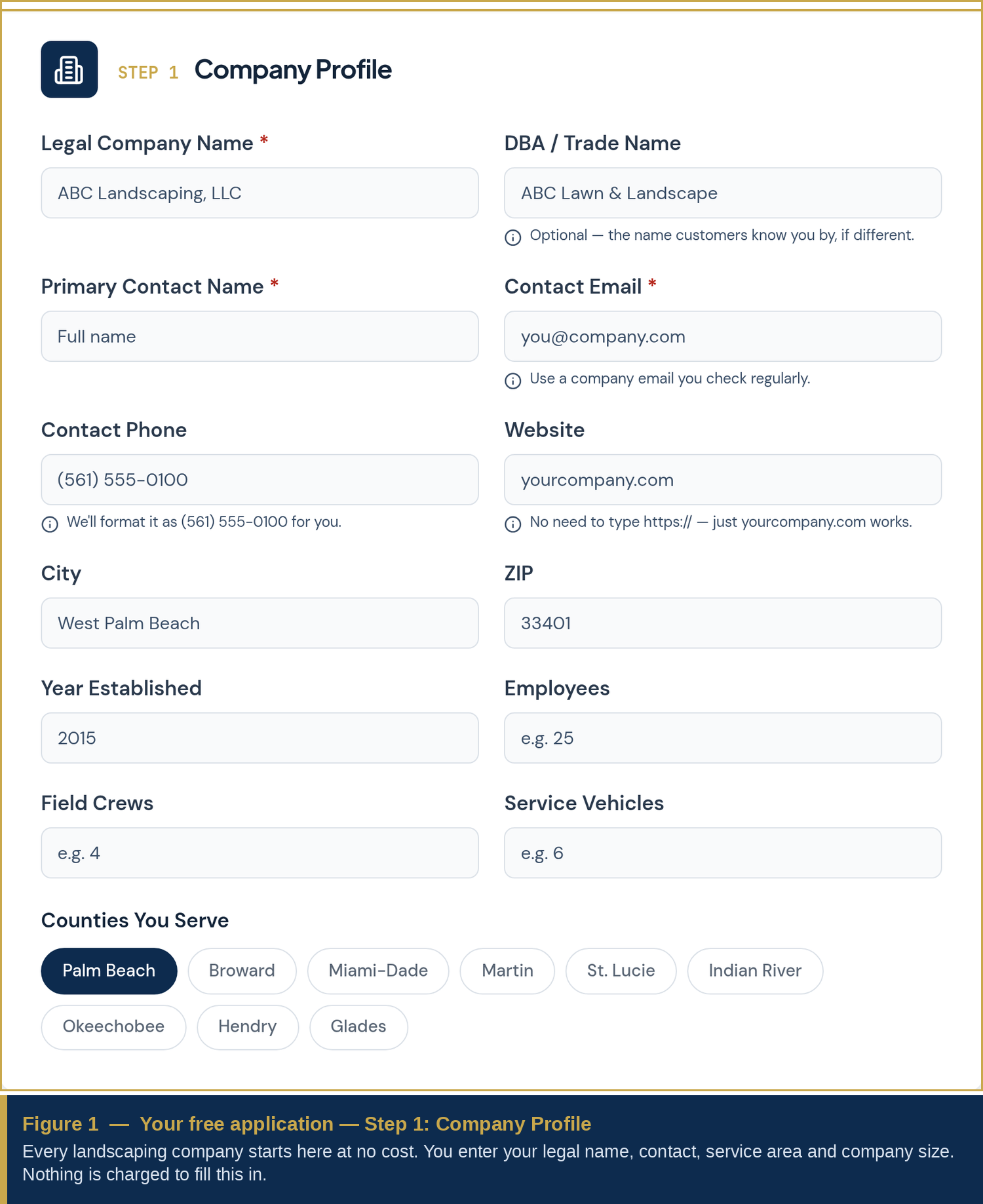
Step 1 Company Profile form
2

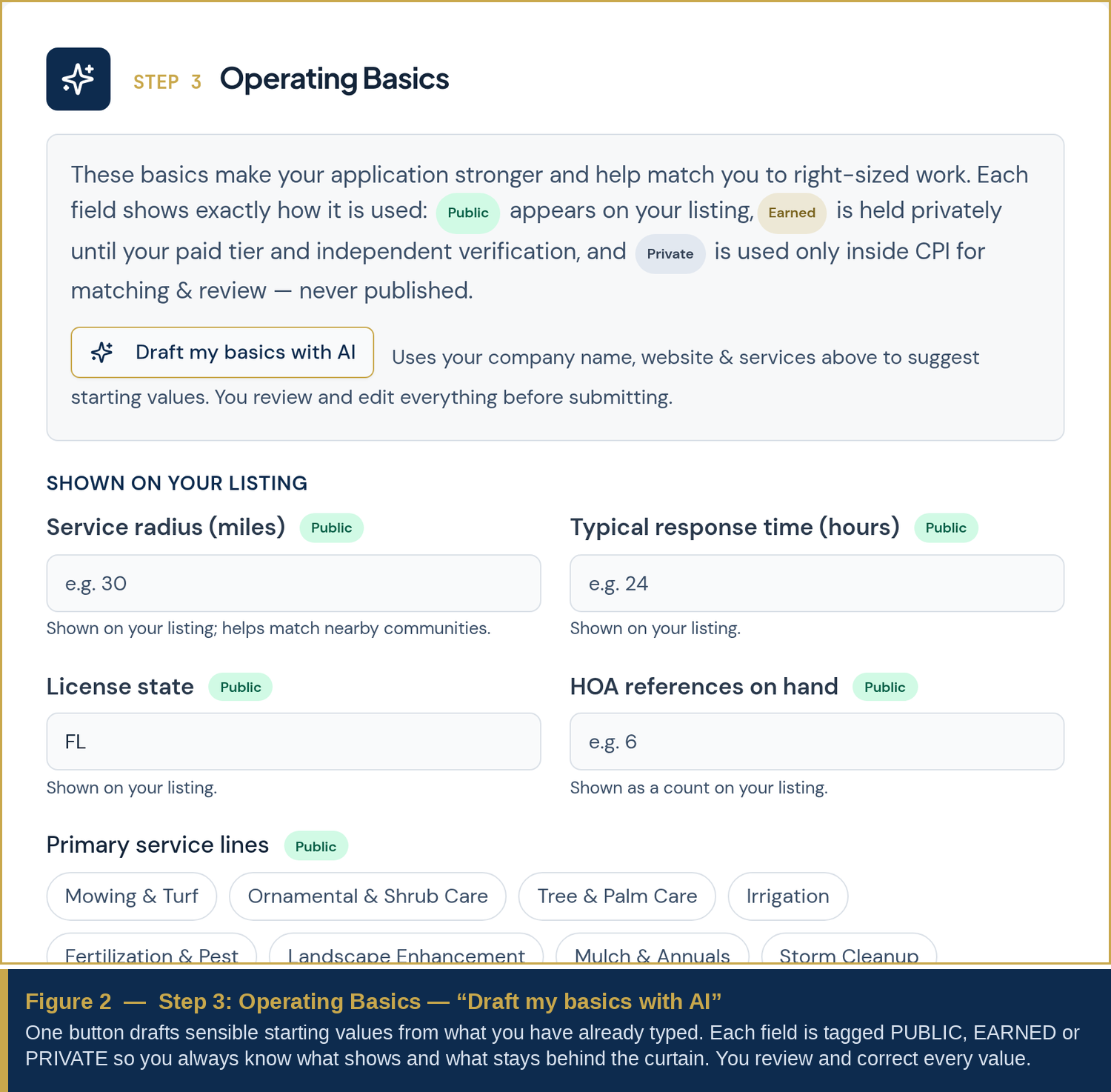
Operating Basics — and one-click AI draft

Seat: the Vendor, assisted by CPI's AI • Where: Step 3 • The heart of “value behind the curtain”

Step 3 is where CPI captures the richer “operating basics” that make matching genuinely smart. The important idea for a 65-year-old board member or a busy owner is this: capturing a value is not the same as publishing it. Each field is openly tagged so you always know what will show and what stays private.

  • Public — shows on your listing: Service radius, Typical response time, License state, HOA references on hand, Primary service lines.
  • Earned — held privately until your paid tier and independent verification, then shown with a Verified badge: License number, General liability limit, Workers' comp carrier, Bonding capacity.
  • Private — used only inside CPI for matching & review, never published: Typical contract size (low / high), Equipment owned %, Work subcontracted %, Notable communities served.

The “Draft my basics with AI” button reads the company name, website and services already entered and proposes sensible starting values. The vendor reviews and corrects every one before submitting — the AI drafts, the human decides.

Step 3 Operating Basics with AI draft button and visibility tags
3

Name the credentials you want verified

Seat: the Vendor • Where: Step 4 — Credentials to Verify

Here the company checks off which credentials it wants CPI to independently confirm. For a landscaping firm this is typically:

  • Business License — state or local contractor / business registration
  • Liability Insurance — general liability coverage and limits
  • Workers' Compensation — active coverage for field crews

Naming a credential here does not confirm it — it simply tells your onboarding specialist and the verifier what to check. Confirmation happens later, in Stage 8.

4

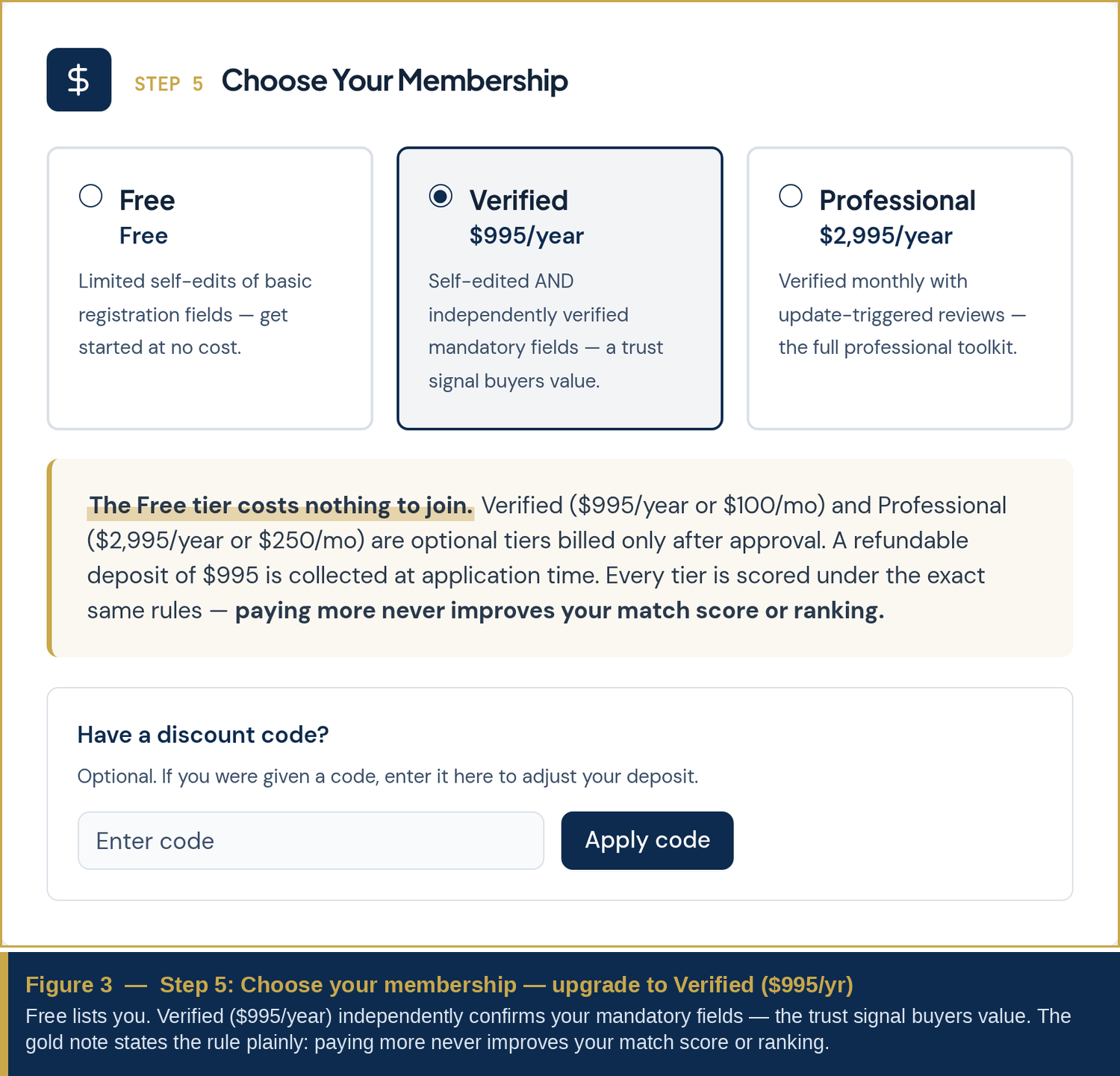
Choose Verified — $995 / year

Seat: the Vendor • Where: Step 5 — Choose Your Membership

Three tiers are offered side by side, in plain language:

  • Listed — limited self-edits of basic registration fields; get started at no cost.
  • Verified — $995/year ($100/mo) — self-edited and independently verified mandatory fields; the trust signal buyers value.
  • Professional — $2,995/year ($250/mo) — verified monthly with update-triggered reviews; the full professional toolkit. (This is the Premier tier reached in Stage 10.)

To move from a Listed profile toward verified status, the company selects Verified.

Step 5 membership tiers with firewall note
5

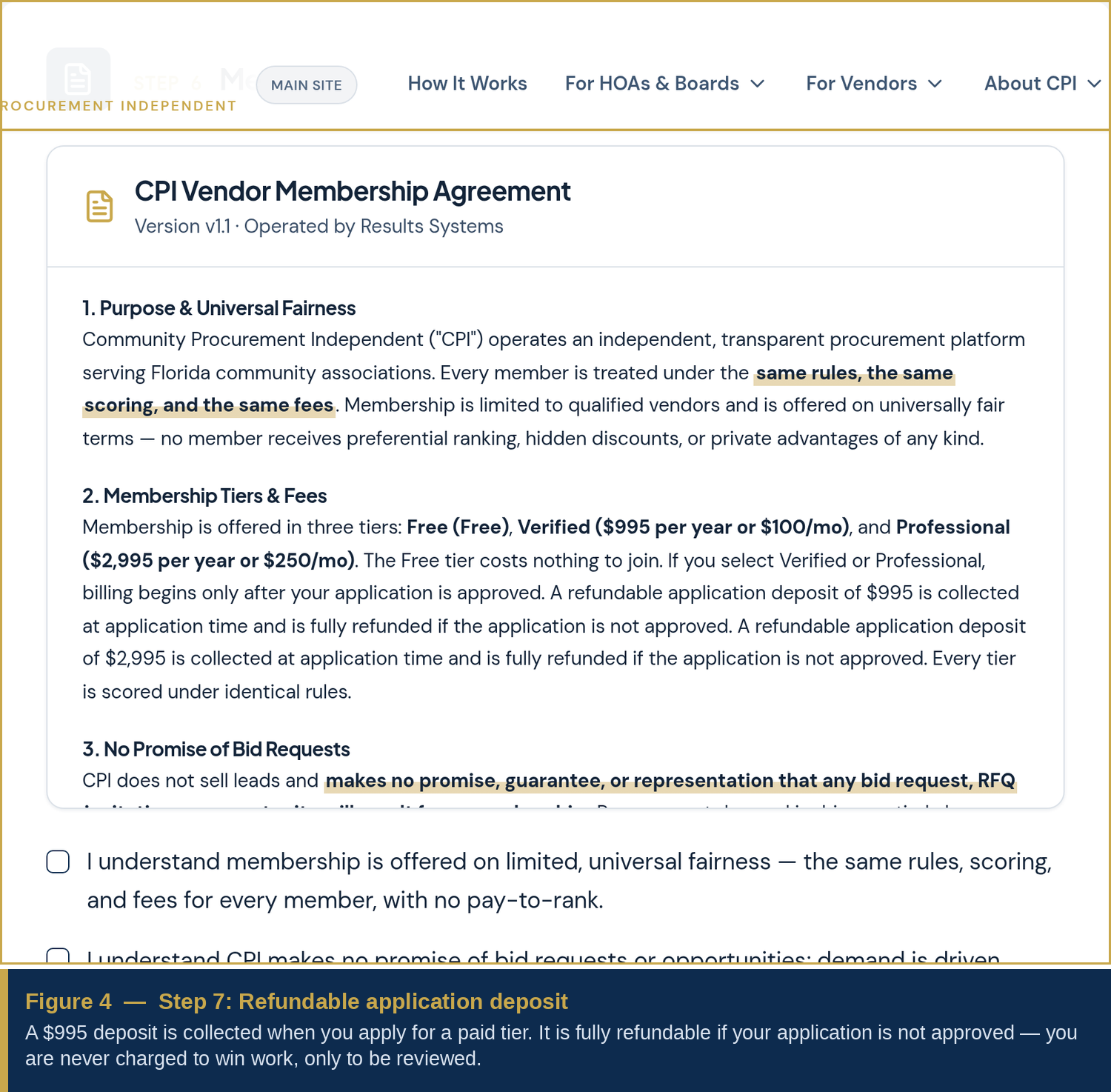
Sign the agreement & pay the refundable deposit

Seat: the Vendor • Where: Steps 6–7 — Agreement & Application Deposit

Step 6 — Membership Agreement

A short, readable agreement (operated by Results Systems). The company types an Electronic Signature (full legal name) and Title (Owner, President, etc.).

Step 7 — Application Deposit

A $995 deposit is collected when applying for a paid tier. It is fully refundable if the application is not approved. If the company was given an Admin Code by staff, it can be entered here to adjust the deposit. Verified and Professional are billed only after approval — you are never charged to win work, only to be reviewed.

Step 7 refundable application deposit
6

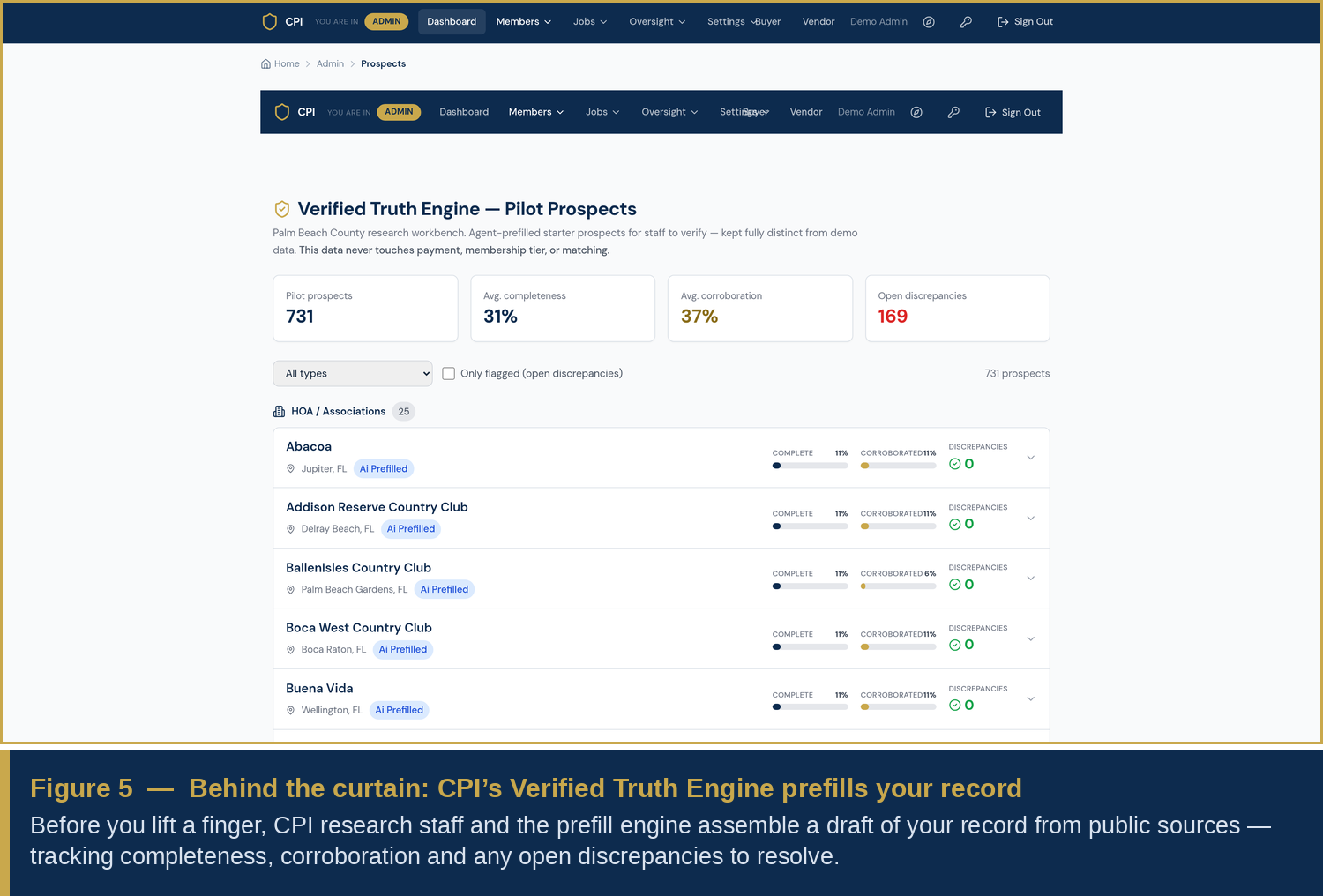
Behind the curtain: CPI prefills & enriches your record

Seat: CPI prefill & research + the Admin • Where: internal — the Verified Truth Engine

This is work done for the company, not by it. Before and during review, CPI's research staff and prefill engine assemble a draft of the company's record from public sources — then measure how complete and corroborated it is, and flag anything that disagrees.

  • Completeness — how much of the profile is filled in
  • Corroboration — how much has been independently backed up
  • Open discrepancies — anything that needs a human to resolve

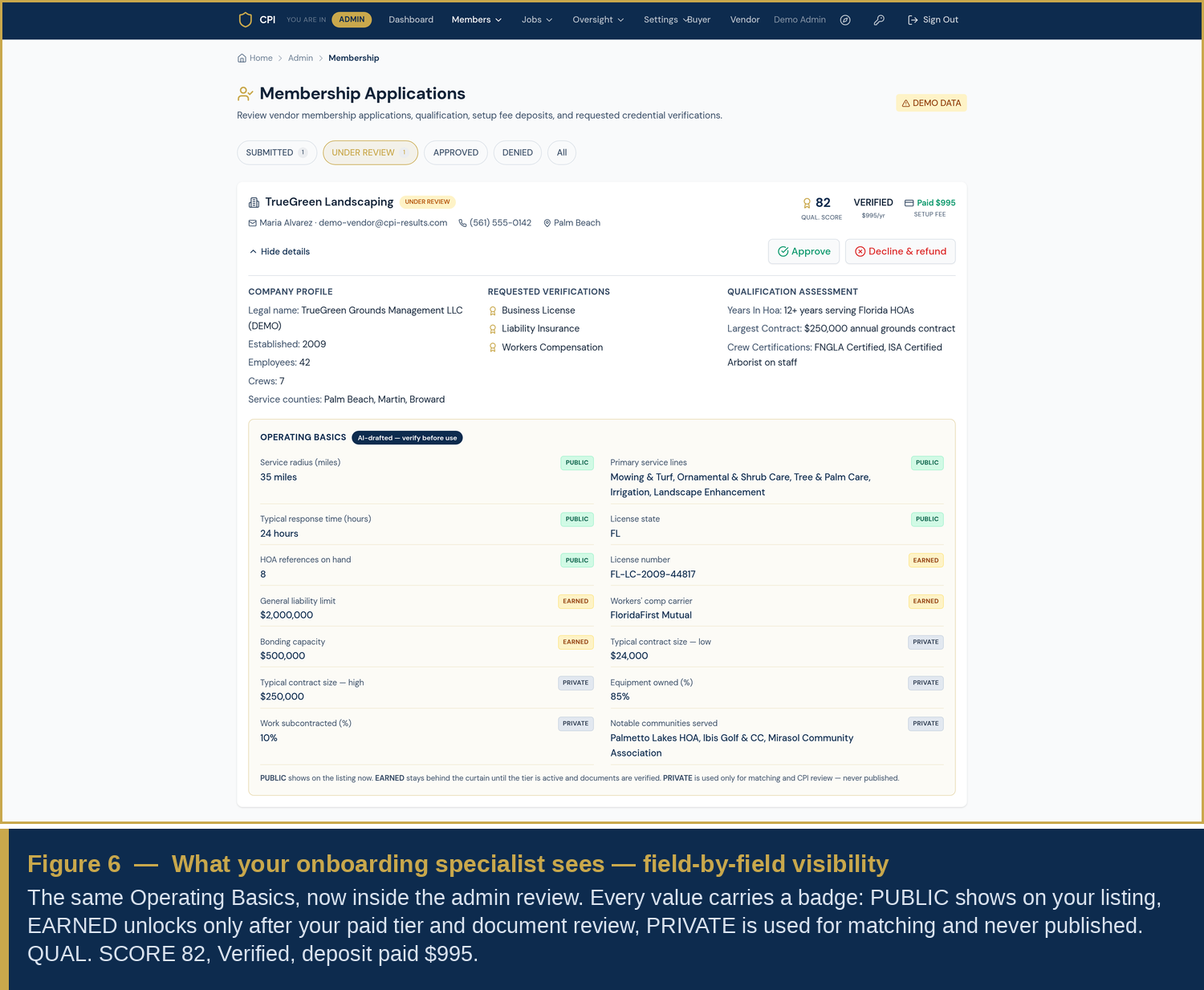
When the reviewer opens the company's application, everything comes together on one screen: the Company Profile, the Requested Verifications, the Qualification Assessment, and the full Operating Basics panel — each value carrying its Public / Earned / Private badge. An “AI-drafted — verify before use” marker reminds the reviewer to confirm any prefilled value.

Worked example, on screen. TrueGreen shows QUAL. SCORE 82, tier Verified, deposit Paid $995. Public: 35-mile radius, 24-hour response, FL, 8 HOA references, five service lines. Earned (pending verification): license FL-LC-2009-44817, $2,000,000 liability, FloridaFirst Mutual, $500,000 bonding. Private (never published): contract range $24,000–$250,000, 85% equipment owned, 10% subcontracted, and its notable communities.
Admin Verified Truth Engine prospects list
Admin membership review with field-by-field visibility badges
7

Documents & your onboarding specialist

Seat: the Vendor + CPI onboarding specialist • Where: the Verification Center

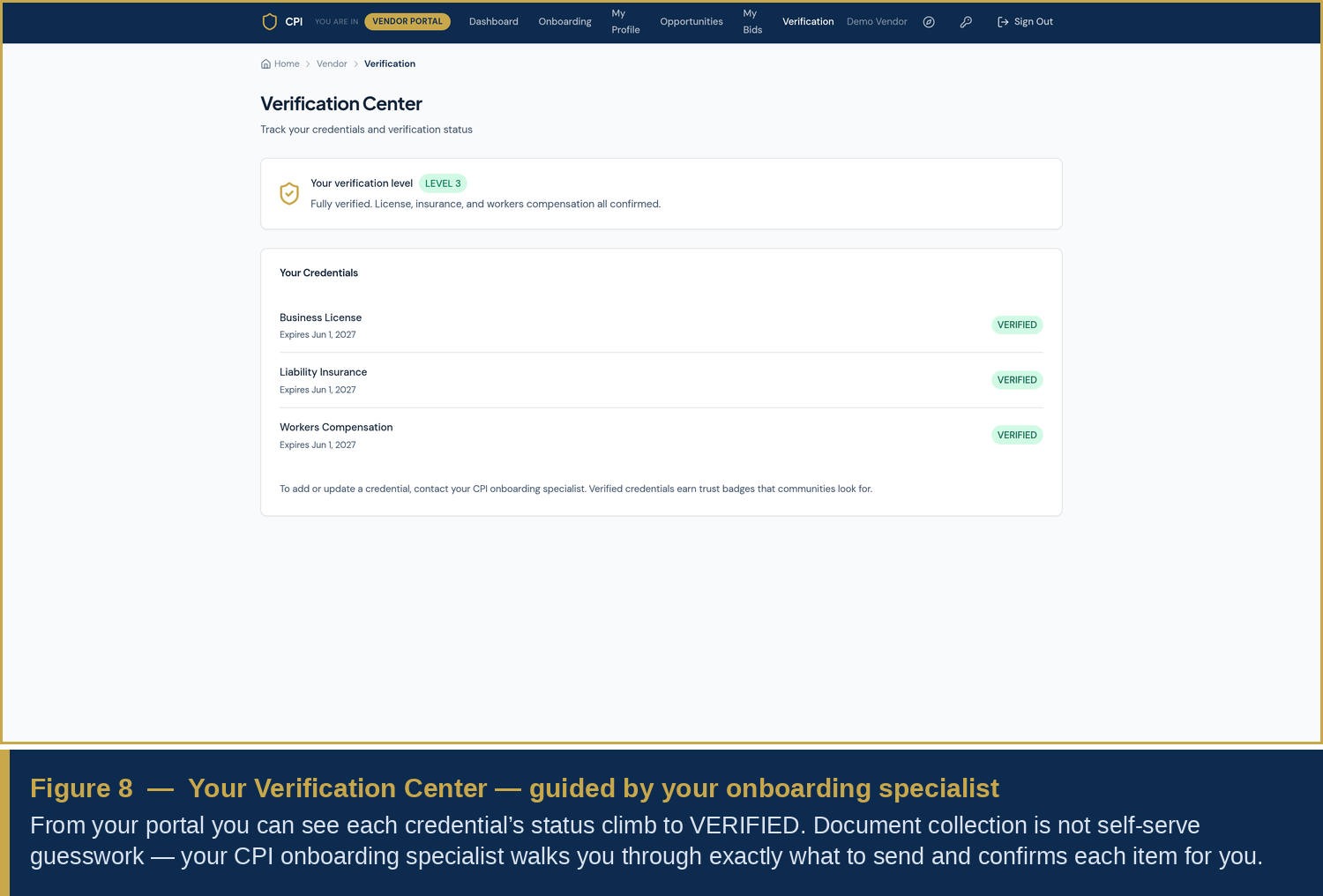
Collecting documents is not a self-serve guessing game. A named CPI onboarding specialist walks the company through exactly what to send — the license certificate, the insurance declarations page, the workers' comp certificate — and handles each submission on the company's behalf. The Verification Center simply shows the status of each item as it climbs toward VERIFIED.

Vendor Verification Center showing credential statuses
8

The verifier confirms each credential

Seat: the Verifier • Where: the Verification Queue

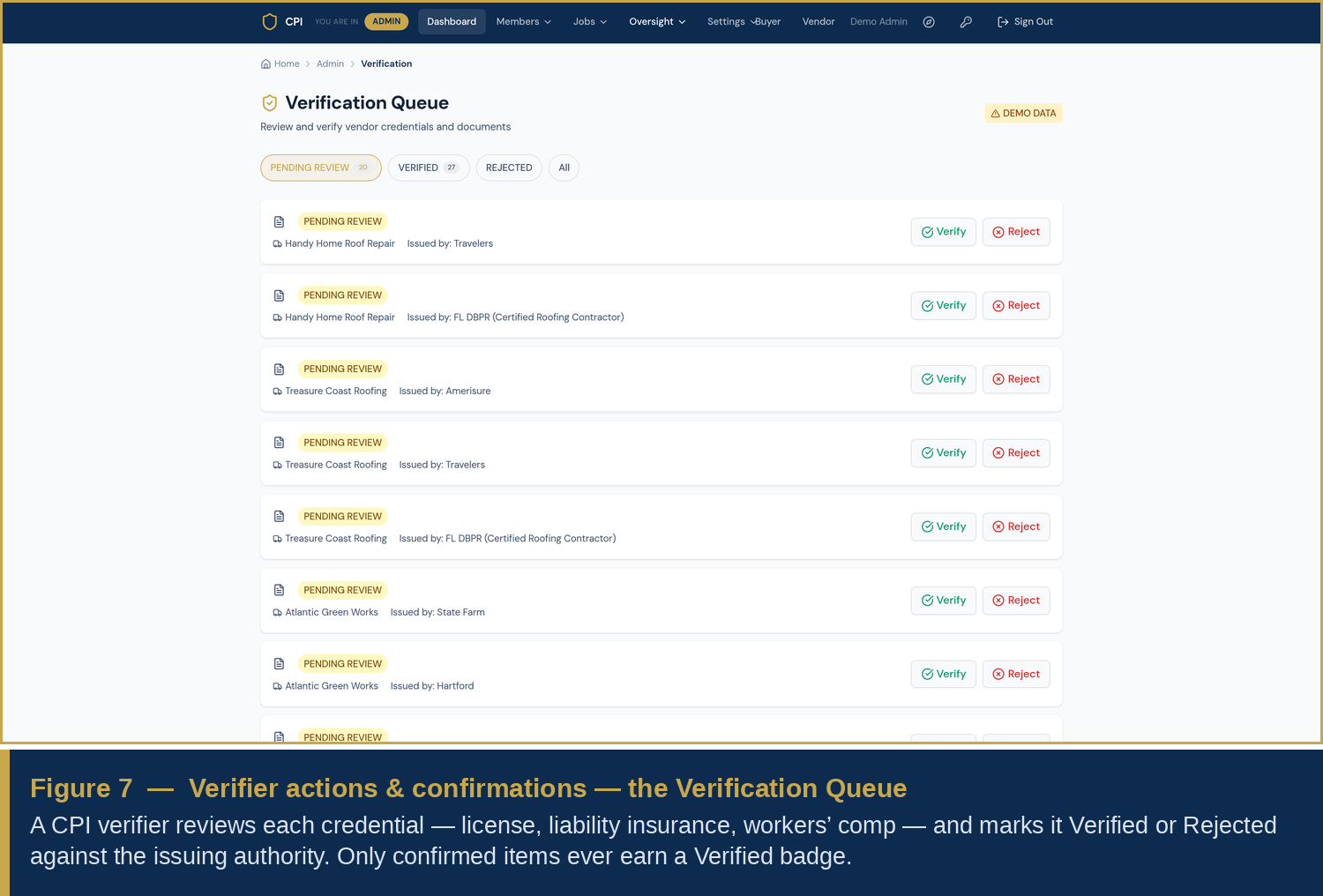
Every named credential lands in a queue where a CPI verifier reviews it one at a time. For each item the verifier checks the document against the issuing authority and then marks it Verified or Rejected. Only a confirmed item ever earns a Verified badge on the listing — and only Earned fields tied to a confirmed credential become visible.

What confirmation unlocks. Once the Business License is verified, the Earned license number can display with its Verified badge. Once liability and workers' comp are verified, those limits and the carrier can show too. Nothing Private is ever unlocked for display — it stays behind the curtain for matching only.
Admin verification queue with verify and reject actions
9

Published status, gaps & the interim analysis

Seat: the Vendor (viewing) + CPI • Where: the Verification Center & report download

With the first credentials confirmed, the company reaches published Verified status: its listing now carries the Verified badge and its Earned fields display. The Verification Center makes the remaining picture just as clear:

  • What's published — the confirmed credentials and Earned fields now live on the listing
  • Open gaps — any credential still pending, any discrepancy still to resolve
  • Requirements to reach Premier — what's needed for the full, monthly-verified tier

At this point the company can download an interim analysis — a plain-language snapshot of what is verified, what is outstanding, and the specific items that stand between it and Premier status. This is the document a company uses to close its gaps efficiently.

Honest note on availability. The interim-analysis download and the “generate full report” action in Stage 10 are part of CPI's defined onboarding process. Where a self-serve button is not yet live in your portal, your onboarding specialist produces the same document for you on request — the outcome for the company is identical.
10

Close the gaps → generate the report → Premier Verified

Seat: the Vendor + Verifier + CPI • Where: Verification Center → Professional ($2,995/yr)

Using the interim analysis, the company — guided by its specialist — resolves each open item: sends the last document, clears any discrepancy, confirms the final credential. As each gap closes, the verifier confirms it in the queue.

  1. Close every open gap from the interim analysis (documents, discrepancies, missing confirmations).
  2. Generate the full report — the complete, corroborated profile with every confirmed credential and its Verified badges.
  3. Reach Premier Verified — upgrade to Professional ($2,995/year), which adds monthly, update-triggered re-verification so the profile stays current, not just correct once.

The itemized to-do checklist

Every obligation and action across the journey, organized by the three working seats. Print it, check it off, and nothing gets missed.

Stages 1–5 — Application & upgrade

Vendor obligationsCPI prefill & Admin actionsVerifier confirms
☐Complete Step 1 Company Profile (legal name, contact, counties, size)☐Receive the listing (no fee); open the application record—
☐Complete Step 2 Qualification Assessment (HOA experience, services, differentiator)☐Begin drafting the prospect record from public sources—
☐Complete Step 3 Operating Basics; use “Draft my basics with AI”, then review every value☐Note each field’s Public / Earned / Private tag; mark AI-drafted values “verify before use”—
☐Step 4: name the credentials to verify (license, liability, workers’ comp)☐Log requested verifications on the record☐Note the queue of items to confirm
☐Step 5: choose Verified ($995/yr)☐Confirm the same scoring rules apply to every tier (firewall)—
☐Step 6: sign the agreement (e-signature + title)☐Record the signed agreement—
☐Step 7: pay the refundable $995 deposit (enter any Admin Code)☐Record deposit as paid; hold billing until approval—

Stages 6–8 — Prefill, documents & verification

Vendor obligationsCPI prefill & Admin actionsVerifier confirms
☐Respond to your onboarding specialist’s document requests☐Run the Verified Truth Engine: score completeness & corroboration; flag discrepancies—
☐Send the business license certificate☐Open the full application view; read the Operating Basics with visibility badges☐Check the license against the issuing authority; mark Verified / Rejected
☐Send the liability insurance declarations page☐Attach the document to the liability item☐Confirm carrier & limits; mark Verified
☐Send the workers’ comp certificate☐Attach the document to the workers’ comp item☐Confirm active coverage; mark Verified
☐Answer any discrepancy questions from your specialist☐Resolve flagged discrepancies with the vendor☐Re-check the corrected item; confirm

Stages 9–10 — Status, gaps & Premier

Vendor obligationsCPI prefill & Admin actionsVerifier confirms
☐Review published Verified status & which Earned fields now show☐Publish confirmed credentials & unlock eligible Earned fields☐Confirm each published item is backed by a verified document
☐Download & read the interim analysis☐Produce the interim analysis (self-serve or via specialist)—
☐Close every open gap listed in the interim analysis☐Track remaining gaps & requirements to Premier☐Confirm each newly closed item
☐Approve generation of the full report☐Generate the full, corroborated report☐Sign off that every credential is confirmed
☐Upgrade to Professional / Premier ($2,995/yr)☐Enable monthly, update-triggered re-verification☐Perform ongoing monthly re-checks

One rule, start to finish. A company earns its badges by being complete, corroborated and verified — never by paying more. Payment unlocks what may be shown; it never moves where a company ranks. That firewall is what makes every Verified badge on CPI worth trusting.